
Starbucks Partner Hours App: Setup, Login & Fixes 2026
The Starbucks Partner Hours app is the mobile scheduling app Starbucks employees, called partners, use to view shifts, pick up or swap shifts, and manage availability. Partners typically set it up by installing Intelligent Hub, enrolling their phone with store-provided details or a QR code, and then installing the scheduling app from Starbucks’ internal catalog. The exact setup can vary by store.
You searched the App Store for “Starbucks Partner Hours,” found nothing useful or found several lookalikes, and you just want your schedule on your phone. This guide explains why the app is hard to find and how setup is commonly done. It also covers what enrolling your personal phone involves and how to fix the most common problems. Where Starbucks or the app makers have published something, we cite it; where setup details come from partner reports, we say so.
What Is the Starbucks Partner Hours App?
The Starbucks Partner Hours app is the mobile scheduling tool Starbucks partners use to see their shifts on a phone. Starbucks itself refers to “the Partner App.” In November 2023, it announced Partner App upgrades, including a personalized benefits-status view for eligible partners. Partner guides commonly report the scheduling app’s catalog name as “SBUXPartnerHrs.”
What the name means in practice. “Partner Hours app” is the name partners and guides use. In your phone’s app catalog, you may see a different label.
What it is not:
- Not the customer Starbucks app. The customer app is for ordering and Rewards, not work schedules.
- Not the Partner Hub. The Partner Hub is Starbucks’ internal website for news, policies, and links to other tools.
- Not where pay stubs live. Starbucks’ benefits site says pay statements, vacation and sick balances, and time-off entry are handled in Partner Central.
Why You Can’t Find the Partner Hours App in the App Store
The Starbucks scheduling app is widely reported to be an internal enterprise app. Partners install it through an employer’s app catalog rather than by searching a public app store. That’s why searching “Starbucks Partner Hours” often returns lookalike or unrelated apps. Many partner guides describe installing Omnissa’s Intelligent Hub first, then finding the scheduling app inside it.
Guides online disagree sharply here. We found the following claims on pages ranking for this topic:
| Claim found on ranking pages | Our assessment |
|---|---|
| “Search ‘Starbucks Partner Hours’ in the App Store; look for the app by Starbucks Corporation” | We found no public listing to confirm this. Treat any public “Starbucks Partner Hours” app with caution. |
| “Install Intelligent Hub, enroll, then install from its catalog” | The most widely reported method. Intelligent Hub’s own App Store reviews include a Starbucks partner using it to get their hours. |
| “WorkJam in some regions or stores” | Plausible. WorkJam’s listing says your employer must use WorkJam; confirm locally. |
| “The app is also for customers and shareholders” | Incorrect. The customer Starbucks app is a different product. |
Which App Does Your Store Use?
The app a Starbucks partner uses to see shifts can depend on the store. Some partners use the scheduling app installed through Intelligent Hub, some use WorkJam, and some use Starbucks’ partner pages in a web browser. Your store leader can tell you which applies. You don’t have to guess from online guides, and you shouldn’t install several apps hoping one works.
| Option | How you get it | Confirmed facts |
|---|---|---|
| Scheduling app via Intelligent Hub | Install Intelligent Hub → enroll phone → install from the Hub catalog | Intelligent Hub is Omnissa’s device-management app. The Starbucks catalog name is reported, not confirmed. |
| WorkJam | Public App Store or Google Play listing | Works only if your employer uses WorkJam, per its listing |
| Web browser | Starbucks partner sign-in pages | Starbucks’ sign-in page uses your Global Username and password |
| Posted schedule | In store | No setup needed |
What Are Starbucks Partner Hours App?
The most commonly reported setup has three stages. First, install Intelligent Hub from the official App Store or Google Play listing. Second, enroll your phone using a QR code or enrollment details from your store. Third, install the scheduling app from the Hub’s catalog and sign in with your Global Username. Starbucks hasn’t published these steps publicly, so confirm them with your store leader first.
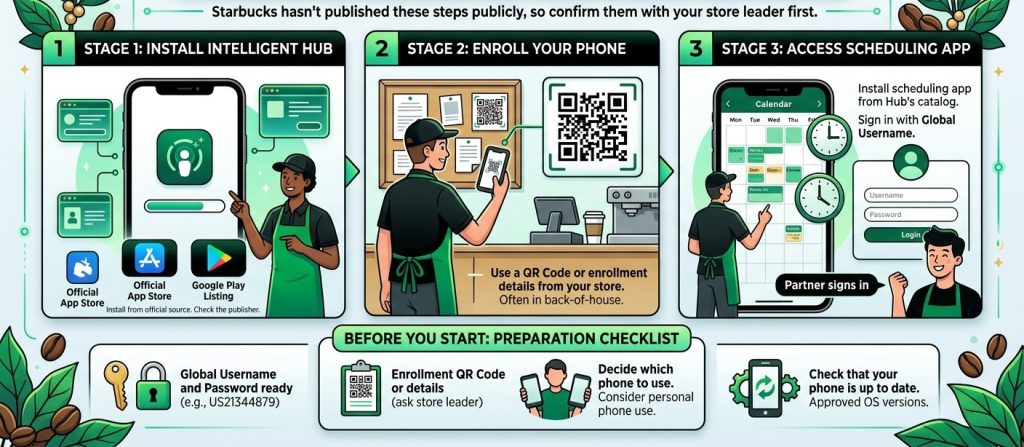
Before you start:
- Ask your store leader for the enrollment QR code or enrollment details. Guides say the QR code is often posted in the back-of-house area.
- Have your Global Username and password ready. Your Global Username is your country code plus partner number, for example US21344879.
- Decide which phone to use. Read the personal-phone section below before enrolling your own device.
- Check that your phone is up to date. Intelligent Hub lets employers set approved OS versions and device models, according to Omnissa’s documentation.
Steps:
- Install Intelligent Hub from the official App Store or Google Play listing. On the App Store, the listing shows “Omnissa Workspace ONE” as the developer. Don’t use download sites.
- Open Intelligent Hub and start enrollment. Scan the QR code from your store, or type in the enrollment details your store leader gives you.
- Expected result: Hub asks you to sign in and may ask for permissions.
- Most common error: enrollment fails on a new phone because your old phone is still enrolled. Intelligent Hub’s developer says IT admins may cap how many devices you can enroll, so unenroll the old device first or contact support.
- Sign in with your Global Username and password, then complete verification. Starbucks’ sign-in page references the SecureAuth OTP app for push verification.
- Most common error: using a name-based username or your partner number alone. Use the country-code format.
- Review and accept the permissions you’re comfortable with. Enrollment can install a device-management profile.
- Open the Hub catalog and install the scheduling app. Guides report it may install automatically after enrollment.
- Expected result: the app appears on your home screen.
- Open the app and sign in with the same Global Username and password.
- Expected result: your upcoming shifts appear. If the screen is blank, see the troubleshooting table below.
What You Can Do in the Partner Hours App
The Starbucks Partner Hours app is mainly for scheduling. Partners commonly use it to view upcoming shifts, pick up open shifts, swap shifts, and update availability. Starbucks says its Shift Marketplace helps partners pick up about 30,000 shifts a week (September 2026). Pay statements, time-off balances, and time-off entry are handled in Partner Central, according to Starbucks’ benefits site.
| Task | Where it’s done | Confirmation level |
|---|---|---|
| View shifts | Scheduling app | Widely reported |
| Pick up open shifts | Shift Marketplace | Named by Starbucks |
| Swap shifts | Scheduling app, with store leader approval | Widely reported |
| Set availability | Scheduling app or Starbucks Partner Preferences site | Official “Partner Preferences” sign-in exists at myavailability.starbucks.com; features not public |
| Pay statements, sick/vacation balances, time off | Partner Central | Starbucks benefits site |
| Benefits status | Partner App and web, for eligible partners | Starbucks (Nov. 2023) |
One real-world caution about availability. A Starbucks partner’s review on Intelligent Hub’s App Store page says hours loaded slowly and availability changes didn’t always save. After changing availability, reopen the app later to confirm the change stuck, and tell your store leader if it didn’t.
Using the App on a Personal Phone: What Enrollment Means
Enrolling a phone in Intelligent Hub lets an employer apply device-management controls to it. Intelligent Hub’s App Store listing says it extends MDM and MAM capabilities so a company can keep devices secure, compliant, and connected. It also says the app may use location even when it isn’t open. Partners should understand this before enrolling a personal phone.
What enrollment can involve
- Company device controls: security and compliance settings.
- Location access: the app may use your location in the background.
- Messages from IT and compliance status shown on your phone.
- Admin-set limits on device models, OS versions, and number of devices per user.
What we can’t confirm: the exact controls Starbucks applies to enrolled personal phones
[UNVERIFIED: ask your store leader or Partner Contact Center].
When NOT to enroll your personal phone:
- You’re uncomfortable with employer device-management access or background location use. Use the web sign-in or the posted schedule instead.
- Someone other than your store leader or an official Starbucks source gave you the QR code or enrollment details.
- A site asks you to install a “profile” or APK from outside official app stores.
Partner Hours App Not Working? Fixes by Symptom
Most Starbucks Partner Hours app problems come from enrollment limits, wrong sign-in formats, outdated apps, or connection issues. Start with the symptom that matches yours in the table below. If a fix doesn’t work after one try, contact your store leader or the Partner Contact Center rather than repeating sign-in attempts. Repeated failures on Starbucks systems can lock your account.
| Symptom | Likely cause | Fix |
|---|---|---|
| Can’t find the app in the App Store | It’s distributed through Intelligent Hub (reported) | Install Intelligent Hub and enroll with store-provided details |
| Enrollment fails on a new phone | Device limit set by IT admin | Unenroll the old device, then retry; otherwise contact support |
| Enrollment rejects your phone | OS version or model not approved | Update your OS; ask support which devices are allowed |
| Sign-in rejected | Wrong username format | Use country code + partner number (e.g., US…) |
| Verification push doesn’t arrive | SecureAuth app or device setting | Check the SecureAuth OTP app and notifications; manage devices on Starbucks’ sign-in page |
| App opens but schedule won’t load | Server or connection issue | Switch between Wi-Fi and cellular, update the app, check the web sign-in |
| Availability change didn’t save | Sync issue (reported by partners) | Recheck later; confirm with your store leader |
| WorkJam says your account isn’t found | Your store doesn’t use WorkJam, or access isn’t set up | Ask your store leader which app your store uses |
| Locked out after several tries | Account lock | Use password reset, then call the Partner Contact Center |
Partner Contact Center: Starbucks’ benefits site lists (888) SBUX-411, which is (888) 728-9411, for HR questions including Partner Central. For app and enrollment problems specific to your store, your store leader is usually the fastest route.
No App? Other Ways to Check Your Schedule
Starbucks partners can check their schedule without the mobile app. You can sign in to Starbucks’ partner pages in a phone or computer browser with your Global Username and password, or check the schedule posted in your store. Both options avoid enrolling a personal phone and work as a backup when the app is down.
- Browser: use the sign-in link from your onboarding materials. Starbucks’ Partner Hub sign-in page is hosted on id.starbucks.com.
- Posted schedule: check it at the start of each week and compare it with the app when both are available.
Next Steps
Ask your store leader which app your store uses before installing anything. For the Intelligent Hub method, install it from the official store listing, enroll with store-provided details, and sign in with your country-code Global Username. If you’d rather not enroll a personal phone, use the browser sign-in or the posted schedule. Pay and time off live in Partner Central, not the scheduling app.
FAQs